The Dynamic RLS Topic
The Dynamic RLS topic is getting a good response in my blog post, so I intend to write about other types of scenarios that a security would be required. In this post, we are going to look at another type of security which deals with users and their profiles. Sometimes you have a user part of multiple group (or profile), and also a profile contains multiple users.

This Many-to-Many relationship needs to be also incorporated in the way that security works in Power BI. You want all users to see data related to their own profiles. Because this model includes a Many-to-Many relationship, the implementation of that is a bit different from the normal Dynamic RLS. to learn more about Power BI
Prerequisite
For reading this post, it would be much better to have an understanding of the simple dynamic row-level security with Username or UserPrincipalName function beforehand.
Scenario
Imagine Mark is working in a company. Mark is part of the Sales Group in Seattle. He should see all sales transactions related to Seattle. Also; he is part of the sales group in Portland, and should see the transactions details of Portland too. On the other hand side; there are other people which their access is different. David is part of sales group of Chicago, and also Seattle. This situation creates a Many-to-Many relationship between user table and profile table such as below;

To be able to follow the example, here is sample data sets for each table;
User table

It is important that user table includes a column for their Power BI accounts (in this example; email).
Profile table

You might call it branch or store or group as well.
User Profile table

This table holds the relationship or link between users and their profiles.
Transactions table

Every transaction is related to a profile. All users under that profile should have access to the transaction which marked for that profile. Get more skills from Power BI training
Full Diagram of the Model

The difference between this model and a simple dynamic row-level security is that in this model we have a Many-to-Many relationship, and filter propagation would not be as easy as the simple model.
Filtering Users doesn’t work
Filtering users itself won’t be a solution in this case. Here is a role defined in a user table with DAX filter below;

This DAX filter on the User table would filter the User Profile, but it won’t filter the Profile table, so as a result, it won’t filter the transaction table.

The direction of the relationship between Profile table and User Profile table doesn’t allow the filter to propagate from User Profile to the Profile table. As a result, the Sales transactions table’s data won’t be filtered with the DAX filter defined in the user table. There are many methods that you can get this solution working. In this post, I’ll explain two methods;
Cross Filter; or Both Direction Relationship
This method is not recommended especially because of the performance issue, However, I like to explain it as the first method, because it helps to understand how relationships work in DAX. For using this method; you need to change the direction of the relationship between Profile table, and User Profile table to both directional, and also you need to check the option for “apply security filter in both directions”.

After this change your row level security configuration will work perfectly fine as below;

The diagram of model is now passing the filter all the way to sales transactions table;
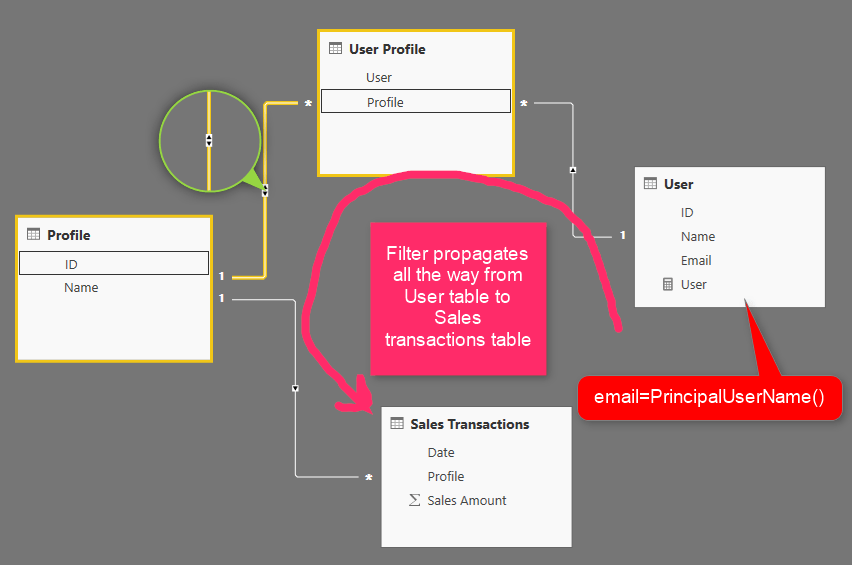
This method is easy to implement. However is not recommended. Applying both direction relationship and the security filter will slow down the performance of your Power BI solution significatnly. On the other hand side; if you have many tables related to each other; depends on the circular dependency, you might not be able to apply both directional relationship always. So I do recommend the next method.
Filtering Data through DAX
Because of issued mentioned in the previous method; I do recommend using this method. This method is basically passing filters through writing some logic within DAX. There are many methods of implementing this logic with DAX. You can write a LookupValue function, Filter function, or many other ways. I’ll explain it with the Filter function.
In this method; you don’t need to change the direction of relationship to be both directions. In this method, you need to find a way to filter data in the Profile table. If you filter the data in Profile table, then the data in Sales Transactions table will be filtered automatically. One way of filtering is to find out first all profile IDs from the User Profile which is related to the logged in user;
Step 1: Find all rows in User Profile for the logged in User
You can use a simple FILTER() function to get all rows from User Profile for the logged in user;
This code will return a sub table from User Profile table which are only rows that is related to the logged in user. from this list, let’s get only their Profile ID in the next step;
Step 2: Get Profile IDs from the List
You can use SelectColumns() DAX function to only select Profile column (which is the ID of the profile);
Now this DAX code will return a table with a single column which is the ID of the profiles.
Step 3: Filter Profile table where the ID matches the table above
we can now use IN keyword to filter data of Profile table just for the logged in user;
This filter should be written in Profile table as below;

As a result, this method works perfectly as expected;

Diagram of this method is a single directional relationship. However, the DAX Filter propagates all the way with the logic we’ve written in the role.

Summary
Applying row level security has many variations. In this post, you’ve learned about how to use Users and Groups (or Profiles) concept and overcome the Many-to-Many challenge for the row-level security. You’ve learned about two methods; which one of them was the recommended approach. There are other ways to implement this scenario as well (with LookupValue and many other functions).
Take your career to new heights of success with Power BI online training Hyderabad



Comments
Post a Comment